Photoroom
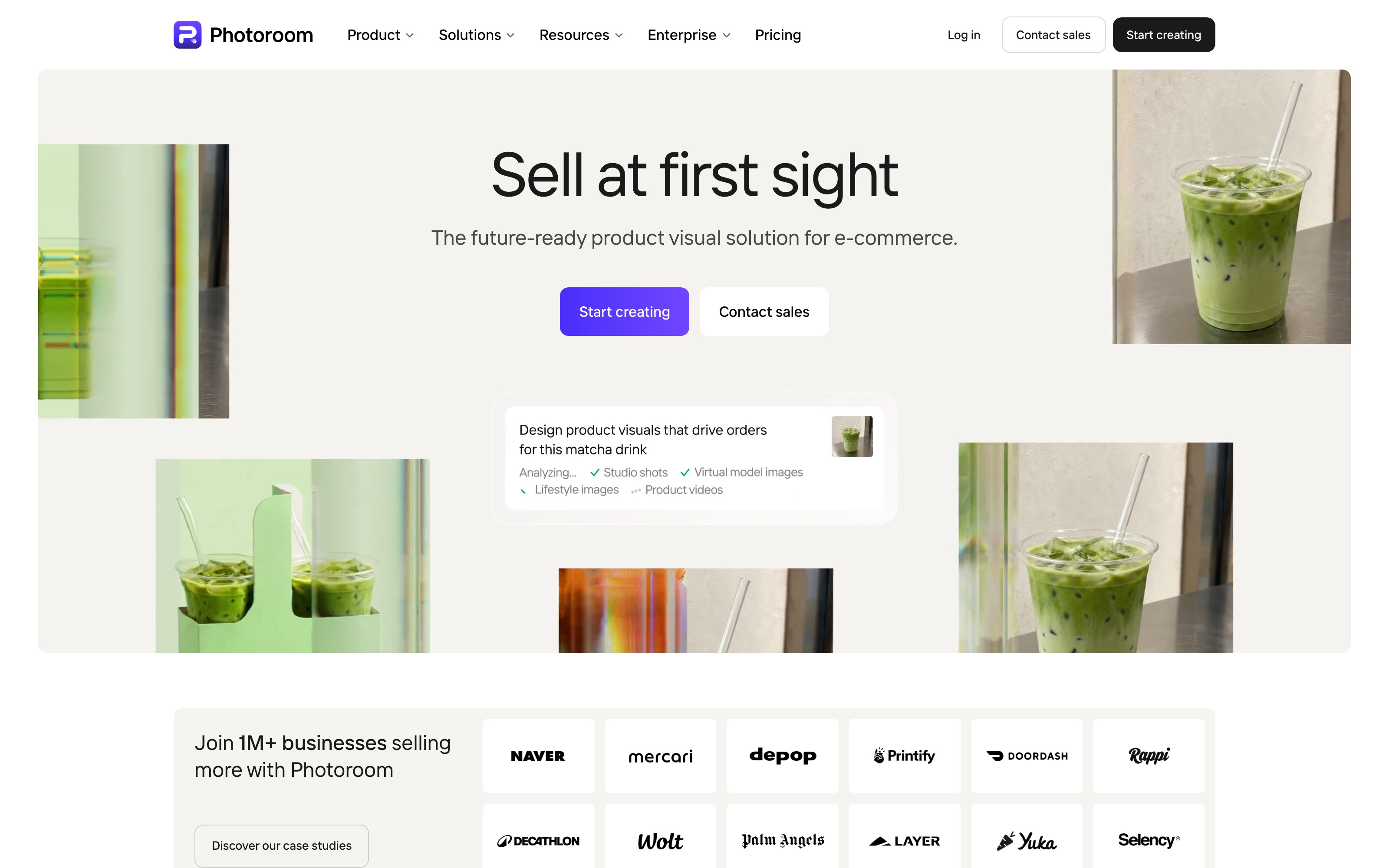
Photoroom is a product photo editor for ecommerce teams creating images for product pages and marketing campaigns. Operators can upload product photos, remove backgrounds, generate new scenes with AI and adjust the images in the editor. They can also edit and export multiple product images in batches.
Photoroom is a product photo editor for ecommerce teams creating images for product pages and marketing campaigns. Operators can upload product photos, remove backgrounds, generate new scenes with AI and adjust the images in the editor. They can also edit and export multiple product images in batches.
Photoroom is a product photo editor for ecommerce teams creating images for product pages and marketing campaigns.
- Views
- 0
- Uses
- 0
- Favorites
- 0
- Supported Platforms
- Shopify · Amazon · Etsy · eBay · Depop · Poshmark
Buying view: Photoroom fits recurring product-photo work: isolate a product, create a new setting and reuse edits across a batch. The buying decision depends on two separate limits, AI credits and exports. Teams that need images processed automatically inside their own software should assess the separately billed API.
Capabilities
Photoroom provides product photo editing, AI image and video generation, and batch image processing. The image editor handles background removal, object cleanup and composition; AI tools create scenes, fashion-model images or videos from product photos; Batch applies the same editing settings to selected images. Teams can choose tools for the images they need to produce, or connect Shopify to import, edit and publish store product images.
What problem it addresses
Product photos can differ in background, size and lighting, while product pages and campaigns may need different presentations. Teams need to distinguish between improving an original photo, generating new material and applying consistent edits to multiple images before choosing a workspace.
How people use it
The image editor handles individual images, while standalone AI tools generate scenes, fashion-model images and videos. Batch handles uploaded image sets, and Shopify Catalog handles the connected store’s product catalog. An individual image from either workspace can open in the main editor for further changes. Results can be downloaded, and Shopify images can also be published back to the store.
First choose whether the product photo needs work on the original image or a newly generated presentation. The original can be cleaned up or enhanced; AI tools can create a new background or fashion-model image. Check generated product details against the original and correct any discrepancies, then download the result or open it in the editor for further adjustments.
Background generation can use themes, reference images or prompts to define a scene; fashion-model generation offers choices for the model, pose and outfit. Image Enhancer compares the original with the enhanced result, while Fix product corrects selected areas of results from the standalone AI tools.
Provide up to four reference images in Video Generator, set the size and prompt, and optionally choose a template. Photoroom generates a video for the operator to review. If the movement or product presentation needs work, adjust the settings and generate again; download the chosen result as an MP4.
Choose the workspace according to where the product images are stored: upload local files to Batch, or connect Shopify and import its product catalog. Select the images for shared edits, opening individual images in the main editor when further changes are needed. Return to the grid and check the selected images, then download the batch or use Review & publish to update the Shopify store.
A Space administrator sets up the Shopify connection. Batch and Shopify Catalog keep their own workspaces, and catalog edits update the store only after Review & publish is performed.
What each module does and its role
Retouch and AI Fill
Retouch and AI Fill handle changes within a selected image area. For object removal, operators use the Retouch brush to mark an unwanted object, repeat the edit if needed and confirm the result before returning to the editor. This supports local cleanup during product-photo editing. Retouch’s Add mode also generates new objects from instructions on iOS and Android; that mode is not available in the web editor.
AI Shadows
AI Shadows adds shadows to product images to adjust their visual presentation. Operators can choose Soft, Hard or Floating presets. The web app also provides controls for hardness, intensity, direction and spread, with changes applied by regenerating the shadow. The result needs to be checked against the product’s shape; an orientation that conflicts with physical constraints may not be applied.
Resize and AI Expand
Resize and AI Expand adapt product images to a chosen size and composition. Operators choose preset or custom dimensions. For a batch retaining its original background, Expand with AI fills the added canvas, Fill crops the image to cover it, and Fit may leave transparent space. These options determine how the photo fits the output dimensions; a template applied later can override the size, so the final framing needs a check before export.
Image Enhancer
Image Enhancer enlarges and enhances an existing photo before it is used or edited further. In AI Tools, operators upload an image, run Enhance and compare it with the original using the before-and-after slider. They can download the result or select Use image to open it in the editor. The web version supports 4× enlargement up to 4,000 × 4,000 pixels; mobile modes and limits differ.
Video Generator
Video Generator creates product videos from reference images. Operators can provide up to four images, choose a template if needed, set the size and describe the desired movement in a prompt. They review the generated video, adjust settings for another attempt when needed and download the chosen result as an MP4. This is the video-production workflow; the image-specific Fix product controls belong to image review.
Background Remover
Background Remover removes the original background from a product photo. Operators can place the cutout on a plain background or use it in a new composition. This provides a product image that other editing and background tools can work with, without requiring another product shoot.
AI Backgrounds
AI Backgrounds creates new settings around a product photo. Operators can review the initial suggestions, then use a theme, reference image or prompt to generate another background and select an image to download or edit. It supplies scene images for product presentation; moving the foreground product can regenerate the background, so the product details need another check before export.
AI Fashion Models
AI Fashion Models turns garment photos into model presentation images. Operators can combine garments into an outfit, choose a model, pose, background, size and quality, and add a prompt or brand style. After generation, they can check clothing details, revise the settings or continue in the editor before downloading. The garment photos provide the clothing reference, while the model, pose and background settings define its presentation.
Fix product / Edit with AI
Fix product and Edit with AI help operators revise images on the standalone AI tools’ result-review screen. Fix product uses the original photo as a reference to regenerate a selected area; Edit with AI creates a revised image from a written instruction. They support the correction step between generation and export, while Batch and Catalog have their own workspaces.
Batch
Batch is the workspace for applying shared edits to multiple uploaded product images. Operators select images in a grid and edit them together; on the web, they can also copy edits from one image to others or open an individual image in the main editor. It handles repeated catalog editing and lets operators choose filenames and a format when downloading. Batch exports require a paid plan.
Commercial plans
Photoroom budget calculator
Adjust the budget slider to find the highest paid app tier it covers. This is an Vendolune budget recommendation, not a check that the monthly credits or exports meet the team’s workload.
Monthly subscription budget
Select the highest eligible plan within this budget. Usage needs are not assessed.
The scale is segmented: each plan or Ultra tier has equal space. The amount shown is the actual budget.
Subscription scope
Photoroom
Adjust the budget slider to find the highest paid app tier it covers. This is an Vendolune budget recommendation, not a check that the monthly credits or exports meet the team’s workload.
The calculator covers US-dollar web subscriptions for Pro, Max and Ultra. AI credits and exports are separate monthly allowances. Free access, Enterprise and API purchases remain separate below.
App plans and allowances
Each generation count assumes the entire monthly credit pool is used on that feature.
Included in Pro, Max and Ultra
- Background Remover: remove the original background
- Retouch: erase unwanted objects; add objects on iOS and Android
- AI Product Fixer: correct product details
- AI Shadows: preset shadows
- AI Fill: fill a selected image area
- AI Expand / Resize: extend or resize the image
- Image Enhancer: enhance and enlarge images
- Core tools consume no AI credits
- Create Spaces, share designs and use Brand Kit; up to 50 seats
- Access on web, iOS and Android
Included in Max and Ultra
- Shopify integration: import, edit and publish product images
| Product or sales surface | Scope |
|---|---|
| Free | Image editing for personal, non-commercial use. Included plan entitlements
|
| Pro | 8,000 AI credits and 1,000 exports/month. Included plan entitlements
|
| Max | 25,000 AI credits and 3,000 exports/month. Included plan entitlements
|
| Ultra | Four allowance tiers with the same features. Generation counts below use the 75,000-credit base tier. Included plan entitlements
|
| Enterprise | Custom credits, exports and seats. Included plan entitlements
|
API: a separate purchase
| Product or sales surface | Scope | Public price and status |
|---|---|---|
| Remove Background API | Programmatic background removal, billed separately from app subscriptions. | $0.02 per image; purchased in fixed monthly volumes |
| Image Editing API | Image editing through an API call; repeat calls are billed again. | $0.10 per call |
| Enterprise API | Custom pricing for larger requirements. | Contact sales |
US web prices in USD, checked September 16, 2026. Annual mode shows the full prepaid year; credits and exports renew monthly. The official page states VAT/GST is included. Separate API usage and Enterprise quotes are excluded. Final pricing depends on region and checkout.
Comparable tools: price and workflow
| Tool | Workflow difference | Official public price reference |
|---|---|---|
| Pixelcut | A close alternative for background removal, AI image creation and batch exports. Pro includes 600 AI credits, 1,000 batch exports per month and three team seats; compare the allowances and tools, not just the monthly price. | Free: $0Pro: $10/month; $96/year ($8/month equivalent) $30/month; $288/year ($24/month equivalent) Pixelcut official pricing ↗ |
| Claid | Claid combines image enhancement with AI Photoshoot and fashion tools. Its credit model charges by operation, so a background removal and an AI photoshoot consume different amounts. A dedicated API plan is available separately from the web subscription. | Free trial: $0, including 50 web creditsEssentials: $15/month or $108/year ($9/month equivalent); 500 credits/monthPro: $49/month or $420/year ($35/month equivalent); 2,000 credits/monthBusiness: custom quoteClaid official pricing ↗ |
Frequently asked questions
Is Photoroom free to use?
Yes. Photoroom has a free plan for personal, non-commercial editing, including background removal, with usage and export limits. This is separate from a free trial of a paid plan. Commercial work and Batch editing require a paid plan; larger workloads also need sufficient AI credits and exports.
Can I create AI product photos from a phone picture?
Yes. A clear, well-lit phone photo of the actual product can be the starting point. Photoroom can remove the background or generate a new setting around the product. Before using the result in a listing, compare it with the original photo to check product details. Commercial use requires a paid plan.
Will AI change my product’s logo, color or shape?
Generative edits can introduce differences. Before publishing, compare the result with the original product photo and check logos, printed text, color, shape and materials. For a simple cutout, use Background Remover rather than regenerating the product. Keep the original photo as a reference throughout editing.
Can I remove backgrounds from multiple product photos at once?
Yes. The Batch workspace supports background removal and consistent edits across multiple images, and requires a paid plan. Exports are counted per image, not per batch: downloading 20 images uses 20 exports. The allowance is shared across the Space, so check remaining usage before processing a large catalog.
Can I use Photoroom images for commercial purposes?
A paid account permits commercial use subject to Photoroom’s terms; free accounts are limited to personal, non-commercial use. A subscription does not replace the necessary rights to uploaded photos or third-party assets. Before publishing, check the applicable asset licenses and the selling platform’s image requirements.
Which Photoroom plan should I choose?
Choose a plan based on the required AI features and monthly export volume. The published web plans include 1,000 exports per month for Pro, 3,000 for Max and 10,000 for the base Ultra tier. Higher Ultra tiers and custom Enterprise options are available. AI credits and exports are separate allowances; the budget calculator above compares affordable tiers, while the plan table explains included features.
Does Photoroom offer a free trial, and can I cancel?
Eligible customers may be offered a 7-day trial of a paid plan. Check the offer and billing details before starting: billing begins after the trial unless the subscription is canceled beforehand. Cancel through the platform used to subscribe—Web, App Store or Google Play—and confirm completion. Canceling through a different platform does not stop billing.
Can I use Photoroom on a computer without installing an app?
Yes. Photoroom’s web app runs in a browser without a desktop installation. Sign in, select a Space and upload a photo to start editing. There are also iOS and Android apps, but available features and export settings can differ between platforms.
Native connections
The official Shopify app connects a store to a Photoroom Space. A Space administrator sets it up; operators import product images and use Review & publish to publish the selected edits. Publishing and export require an eligible Max or Ultra subscription. This is a product-image handoff, not general store synchronization.
Official Shopify setupInstall the official Figma plugin and enter a Photoroom API key. Select an image to remove its background or generate a background from a scene or prompt inside Figma. This connection uses the separately billed Photoroom API; an app subscription does not include that API usage.
Official Figma plugin guideSources
- Free accounts and commercial use
- Commercial use of templates and images
- Export limits and shared allowances
- Cancel a free trial
- Cancel a subscription
- Web app workflows
- Retouch guide
- AI Backgrounds workflow
- AI Fashion Models workflow
- Image Enhancer guide
- Video Generator workflow
- AI Shadows guide
- Batch resize workflow
- Shopify publishing workflow
- Photoroom app pricing
- Product photography
- Review and edit an AI image
- Batch editor guide
- Copy and paste Batch edits
- Photoroom API pricing
- Pixelcut pricing
- Claid pricing
User reviews
20 reviewsChecked Sep 16, 2026
Photoroom product reviews; excerpts from the first three records in the captured page order, not a representative sample.
Automatic background removal that works quickly
…a perfect PNG
…263 reviewsChecked Sep 16, 2026
Company profile, not Shopify-specific. First three review-list records in captured order; short excerpts link to the full reviews.
It takes 10x the time to edit a photo now.
…They need to restore the old menu asap.
…bad support
33 reviewsChecked Sep 16, 2026
Photoroom AI Listing Assistant for Shopify only.
J’adore mais difficile d’améliorer les photos une fois l’annonce faite le résultat est pas forcément top
Photoroom
Content checked:
Photoroom is refusing to let me upgrade to a more expensive membership.
…